



browse
Usage
The `browse` command opens an interactive Terminal User Interface (TUI) for exploring the Terragrunt configurations discovered in your codebase.
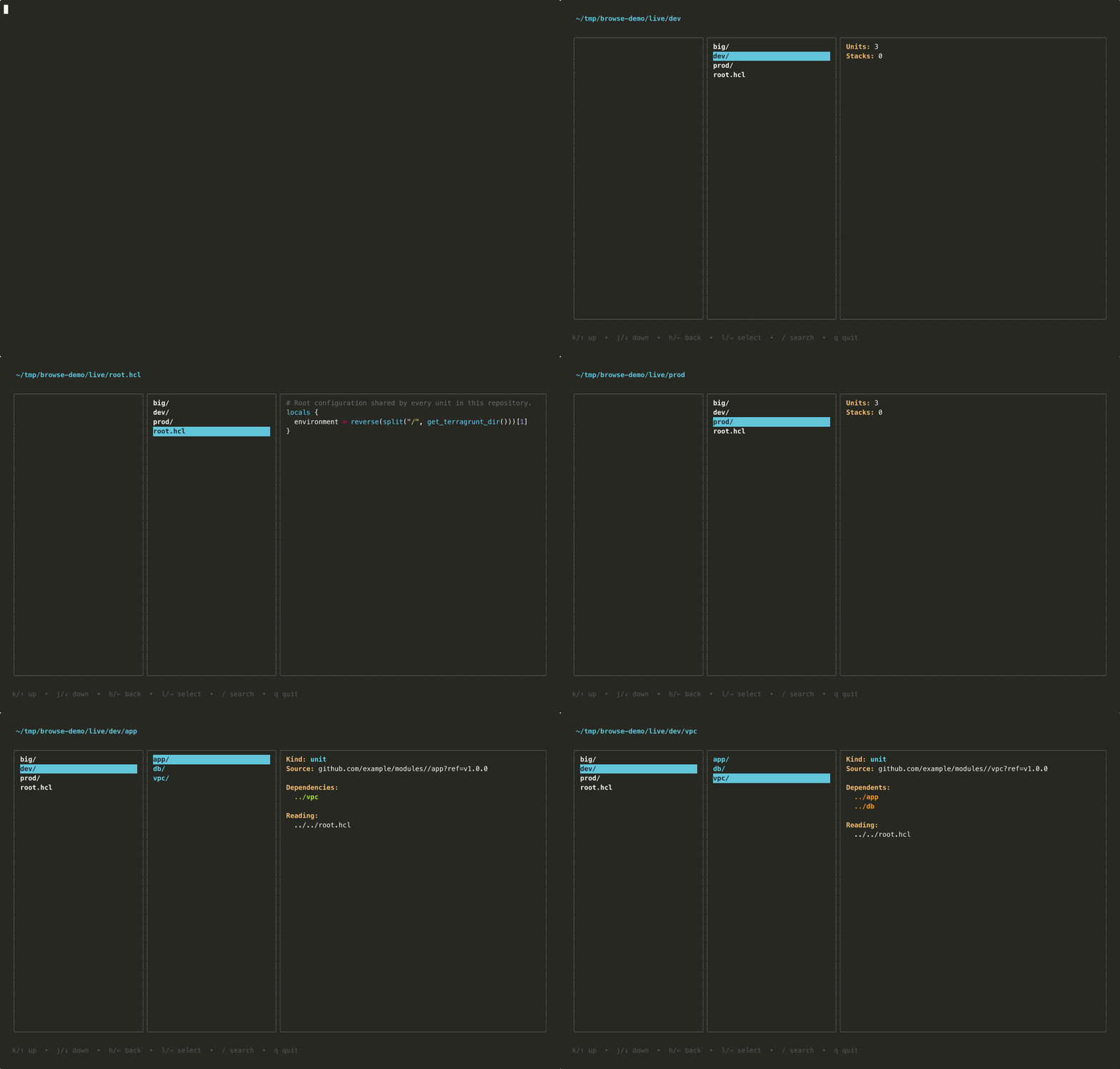
It presents a three-column browser inspired by yazi: the parent directory on the left, the current directory in the middle, and a detail pane on the right showing metadata for the highlighted entry.
Examples
Browse the configurations discovered in the current directory.
terragrunt browseBrowse the configurations discovered in a different directory.
terragrunt browse --working-dir /path/to/working/dirKeybindings
| Key(s) | Action |
|---|---|
j / ↓ | Move the cursor down |
k / ↑ | Move the cursor up |
gg / home | Jump to the first entry in the directory |
G / end | Jump to the last entry in the directory |
pgup / pgdn | Move the cursor up or down a page |
l / → / enter | Descend into the highlighted directory |
h / ← | Return to the parent directory |
/ | Search the current directory |
n | Jump to the next search match |
N | Jump to the previous search match |
esc | Clear the search; quit when no search is active |
q / ctrl+c | Quit |
While the search input is open, keys edit the query instead; ctrl+c still quits.
Navigation
The highlighted entry is shown in blue, and its path is displayed along the top, abbreviated with ~ when it falls under your home directory.
Search
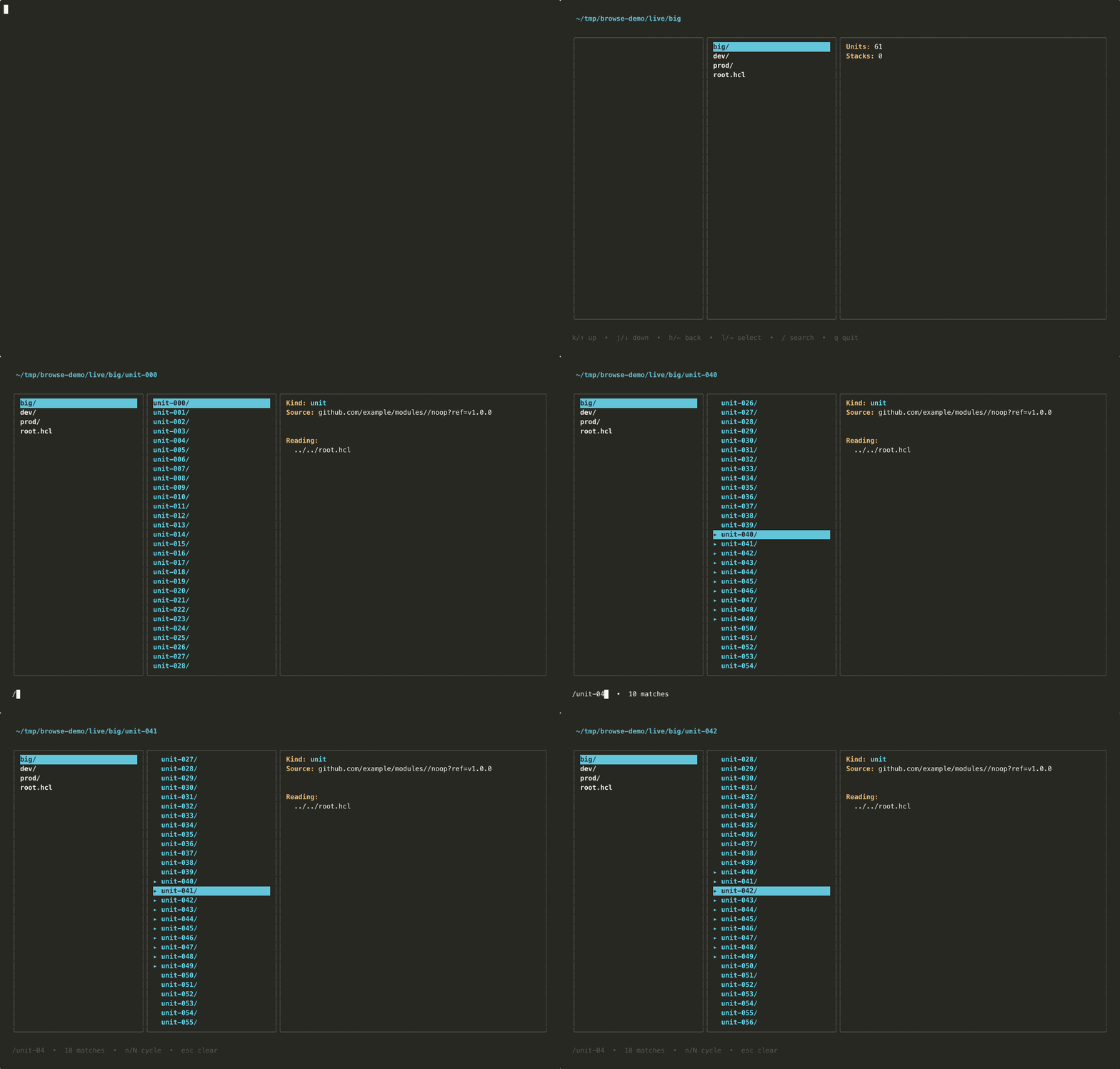
A search matches entries in the current directory. As you type, matching entries are marked, the cursor jumps to the first match, and a match count appears along the bottom. Pressing enter keeps the search applied, leaving the marks in place so you can cycle through the matches. The search also clears on its own when you move into another directory.
Detail Pane
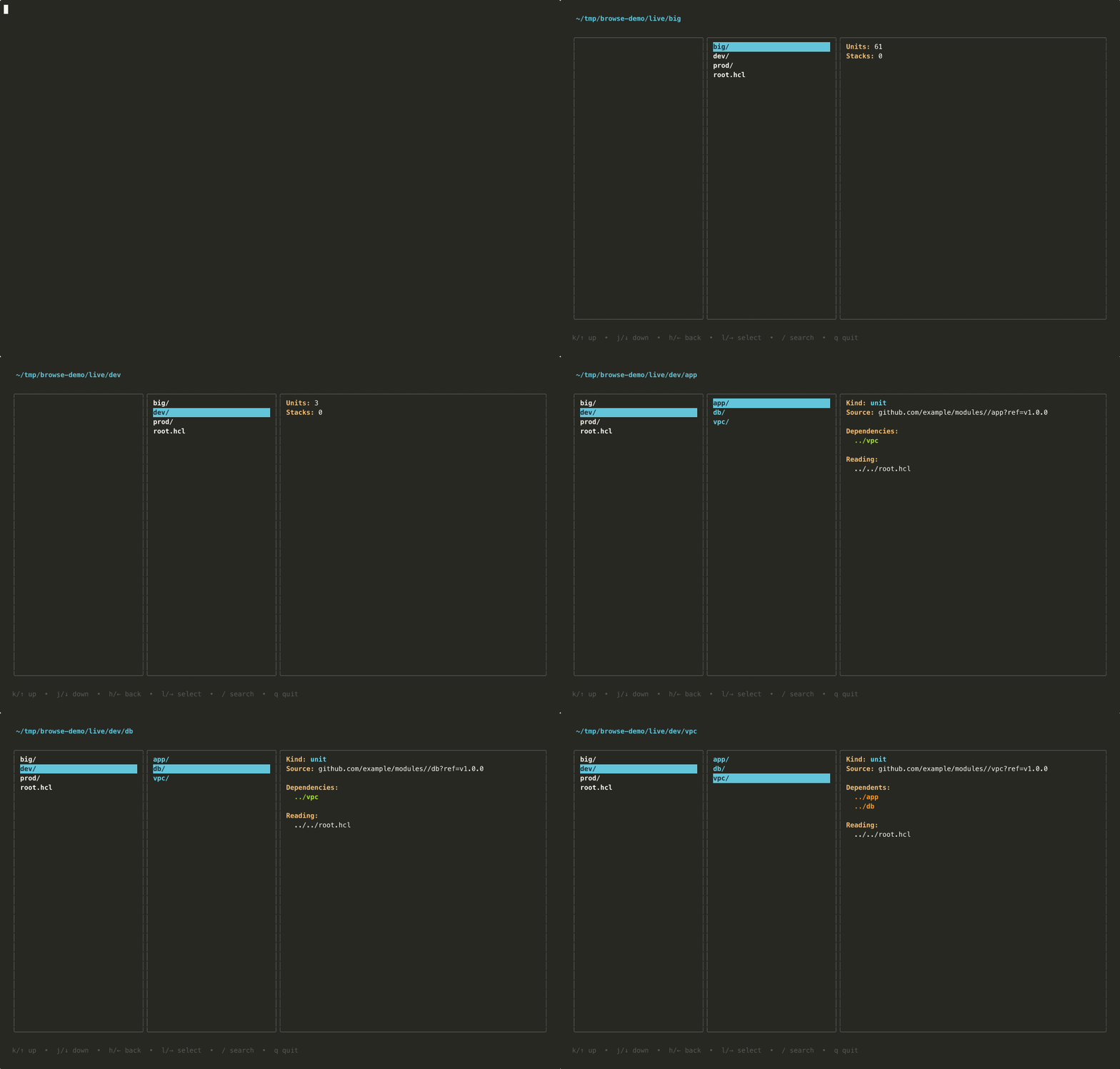
The detail pane shows metadata for the highlighted entry: its kind, path, module source, and its dependencies, dependents, and the files it reads (shown relative to the unit). Plain directories show a count of the units and stacks they contain.
Discovery
The browser opens immediately, reading the filesystem to fill the columns, while discovery runs in the background.
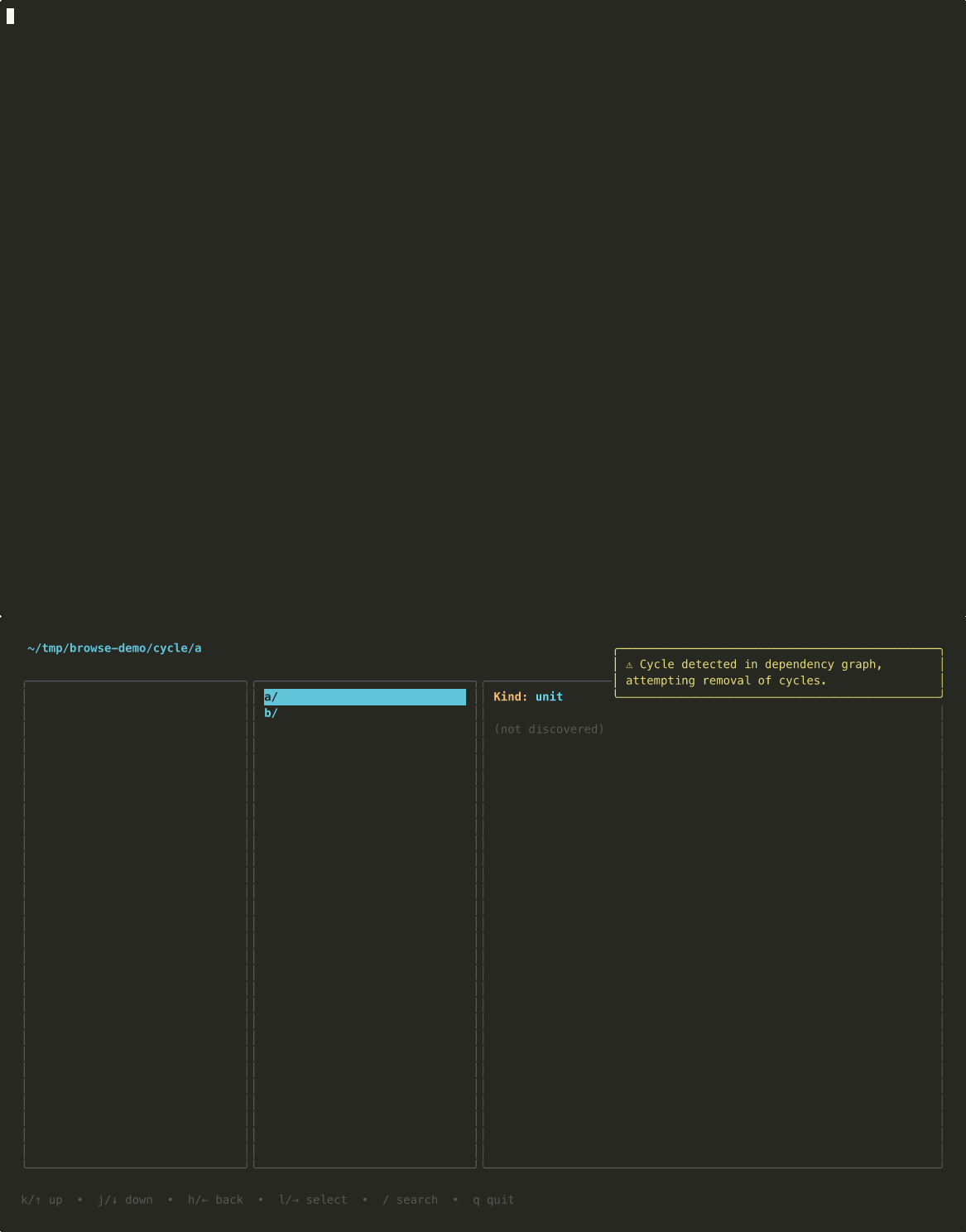
Warnings raised during discovery (a dependency cycle, for example) appear briefly as a toast in the top-right corner. A discovery failure surfaces the same way, and the browser keeps showing whatever partial results discovery produced.
browse reuses the same discovery the other discovery commands rely on, so the configurations it shows match what find and list discover.