



Catalog TUI
Launch the user interface for searching and managing your module catalog.
terragrunt catalog <repo-url> [--no-include-root] [--root-file-name]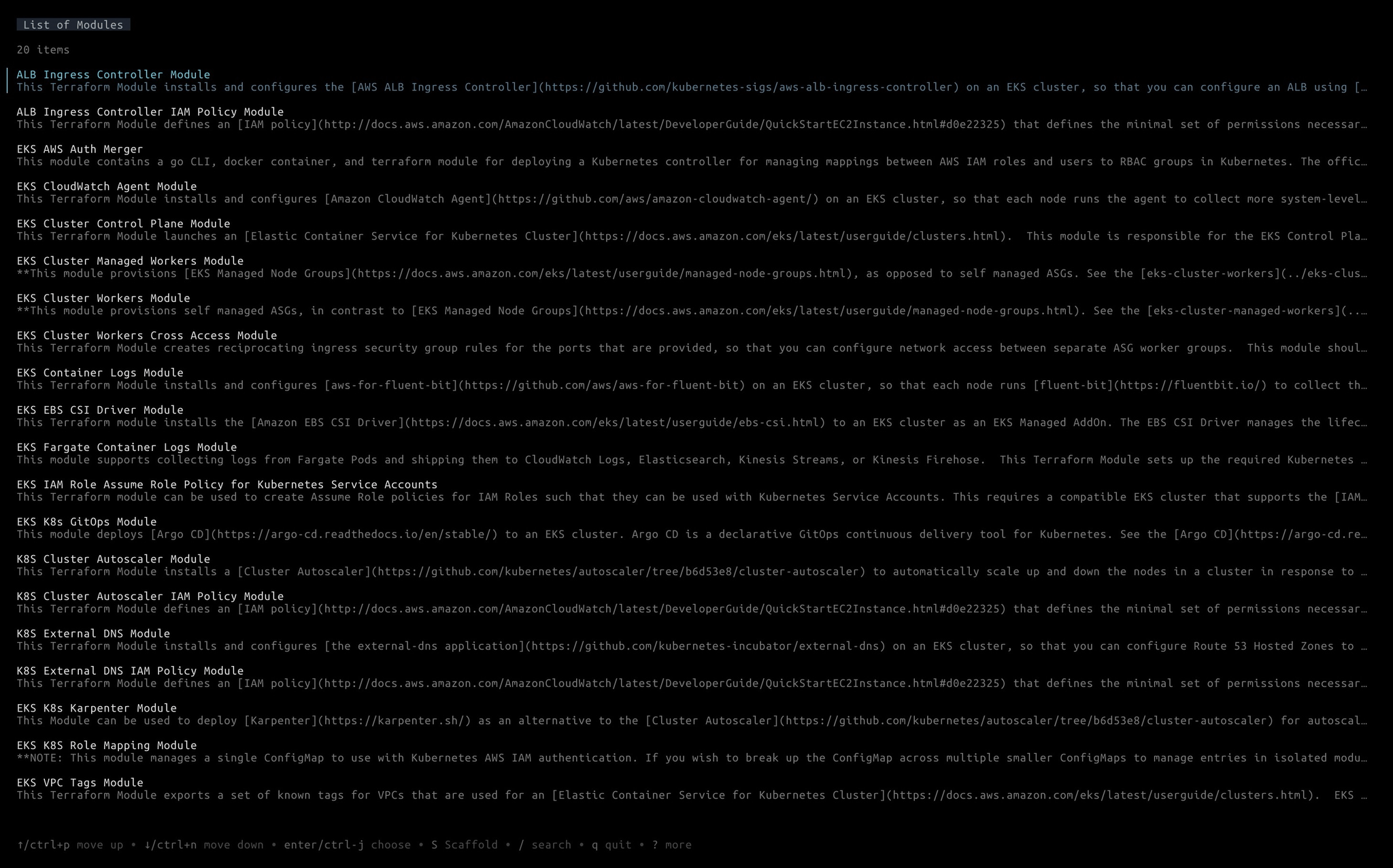
If <repo-url> is provided, the repository will be cloned into a temporary directory, otherwise:
- The repository list are searched in the config file
terragrunt.hcl. ifterragrunt.hcldoes not exist in the current directory, the config are searched in the parent directories. - If the repository list is not found in the configuration file, the modules are looked for in the current directory.
An example of how to define the optional default template and the list of repositories for the catalog command in the terragrunt.hcl configuration file:
catalog { default_template = "git@github.com/acme/example.git//path/to/template" # Optional default template to use for scaffolding urls = [ "relative/path/to/repo", # will be converted to the absolute path, relative to the path of the configuration file. "/absolute/path/to/repo", "github.com/gruntwork-io/terraform-aws-lambda", # url to remote repository "http://github.com/gruntwork-io/terraform-aws-lambda", # same as above ] no_shell = true # Optional: disable shell commands in boilerplate templates for security no_hooks = true # Optional: disable hooks in boilerplate templates for security}This will recursively search for OpenTofu/Terraform modules in the root of the repo and the modules directory and show a table with all the modules. You can then:
- Search and filter the table:
/and start typing. - Select a module in the table: use the arrow keys to go up and down and next/previous page using the left and right arrow keys.
- Read the docs for a selected module:
ENTER. - Use
terragrunt scaffoldto render aterragrunt.hclfor using the module with an interactive form:s. Inside the form,ctrl+dwrites the file even when required fields are still unset, leaving them as# TODOplaceholders for you to fill in by hand.
Scaffolding Flags
Section titled “Scaffolding Flags”The following catalog flags control behavior of the underlying scaffold command launched via s:
--no-include-root- Do not include the root configuration file in any generatedterragrunt.hclduring scaffolding.--root-file-name- The name of the root configuration file to include in any generatedterragrunt.hclduring scaffolding. This value also controls the name of the root configuration file to search for when trying to determine Catalog urls.
Excluding paths from discovery
Section titled “Excluding paths from discovery”Catalog authors can keep directories out of discovery by committing a .terragrunt-catalog-ignore file at the root of the repository. Typical uses are skipping examples/, test/, or integration fixtures that aren’t intended to be scaffolded as modules or templates.
The file format borrows from .gitignore:
- One pattern per line. Blank lines and lines starting with
#are ignored. - Patterns are matched against repo-relative, forward-slash paths (e.g.
examples/vpc). A lone*does not cross/; use**to match across path separators. - A leading
!negates a previous rule, re-including a sibling that an earlier pattern excluded. - Trailing
/is optional and ignored. - The last matching rule wins.
Matching evaluates every path against the rule list in order, so a later ! pattern can re-include a path that an earlier rule excluded, including a descendant of a previously matched directory.
# Keep examples out of the catalog.examplesexamples/**
# Skip everything under test/ except test/keep.test/**!test/keep
With the file above, a repo containing modules/vpc/main.tf, examples/vpc/main.tf, test/drop/main.tf, and test/keep/main.tf surfaces only modules/vpc and test/keep in the catalog.
Layering an additional ignore file
Section titled “Layering an additional ignore file”Pass --ignore-file <path> to load an additional ignore file on top of whatever .terragrunt-catalog-ignore is committed at the repo root. The extra rules are appended after the repo’s rules, so last-match-wins semantics let the extra file either add new exclusions or re-include paths the repo file excluded via ! negation.
terragrunt catalog --ignore-file ./my-ignore-rulesThis is useful when you don’t control the upstream repository, or when you want to temporarily scope discovery without editing files under version control. It can also be set via the TG_IGNORE_FILE environment variable. The path must exist; a missing file is an error.
Component kinds
Section titled “Component kinds”Discovery classifies every directory it finds into one of four kinds, shown as a colored pill next to each entry and used to populate the browse tabs:
- Module: a directory of OpenTofu/Terraform
.tffiles. - Template: a directory holding a
.boilerplate/subdirectory or a top-levelboilerplate.yml. - Unit: a directory containing a
terragrunt.hcl. - Stack: a directory containing a
terragrunt.stack.hcl.
Pressing s scaffolds the selected component through the interactive form, and the kind decides what that produces. For modules and templates, Terragrunt generates fresh configuration from the form values. For units and stacks, it copies the component’s existing files into your working directory so you can edit them in place, alongside a terragrunt.values.hcl carrying any values.* references the form collected. Scaffolding a unit or stack refuses to overwrite an existing file, so a name collision in the destination aborts the action.
Browse tabs
Section titled “Browse tabs”The list view is split into five tabs: All, Templates, Stacks, Units, and Modules. All is selected when the TUI launches and lists every discovered component; the other four each filter the list down to a single component kind. Press tab to move to the next tab and shift+tab to move to the previous; cycling wraps at either end. Each tab keeps its own cursor position and search filter, so switching back preserves where you were.
A component can show up under more than one kind-specific tab when its front-matter tags name another kind. See Component tags.
README front-matter
Section titled “README front-matter”Component authors can override the catalog UI’s default title and description by adding a YAML block at the top of the component’s README.md. Two forms are accepted.
The conventional dash-separated form:
---name: VPC Appdescription: A VPC for application workloads.---
# VPC App
...
An HTML-comment-wrapped form, which stays invisible on Markdown viewers that render dash-separated front-matter as a horizontal rule. The opening tag must be <!-- Frontmatter (case-insensitive):
<!-- Frontmattername: VPC Appdescription: A VPC for application workloads.-->
# VPC App
...
Both forms are parsed the same way.
Recognized keys:
name: the component title shown in the list view. When unset, the title falls back to the first# H1heading in the README, then to the directory name.description: the short description shown beneath the title in the list view. When unset, it is derived from the README body.
A third key, tags, controls the colored pills shown next to each component; see the next section. Unknown keys are ignored.
Component tags
Section titled “Component tags”Catalog authors can attach tags to a component by adding a tags key to the component’s README.md front-matter. Tags appear as colored pills next to the component in the list view, and as a row above the rendered README in the detail view.
Either inline-array or dash-list YAML form is accepted:
<!-- Frontmattername: VPC Appdescription: A VPC for application workloads.tags: [networking, aws, module]--><!-- Frontmattername: VPC Apptags: - networking - aws - module-->Tag values that name a component type also promote the component into that type’s tab. For example, a component classified as a template whose tags include module appears under both the Templates tab (by its native kind) and the Modules tab (by tag), without changing how it’s scaffolded.
Keybindings
Section titled “Keybindings”Each view has its own keymap. The hint bar at the bottom of the screen shows the most common keys for the current view; the table below covers every key that is bound, including alternates that aren’t advertised.
List view
Section titled “List view”The default view, shown after discovery completes.
| Key | Action |
|---|---|
j, ↓, ctrl+n | Move down one row |
k, ↑, ctrl+p | Move up one row |
l, →, pgdn, ctrl+v | Next page |
h, ←, pgup, alt+v | Previous page |
home, ctrl+a | Jump to first row |
end, ctrl+e | Jump to last row |
enter | View the selected component’s README |
s | Scaffold the selected component (interactive form); see Component kinds |
tab | Next tab |
shift+tab | Previous tab |
/ | Search and filter the visible list |
? | Toggle the expanded help view |
q, esc | Quit |
ctrl+c | Force quit |
Component detail (pager)
Section titled “Component detail (pager)”Active after pressing enter on a component.
| Key | Action |
|---|---|
j, ↓, ctrl+n | Scroll down one line |
k, ↑, ctrl+p | Scroll up one line |
l, →, pgdn, ctrl+v | Page down |
h, ←, pgup, alt+v | Page up |
tab | Focus the next button in the footer |
shift+tab | Focus the previous button in the footer |
enter | Activate the focused button |
s | Scaffold the selected component (interactive form) |
ctrl+d | Scaffold immediately, skipping the form; every input is left as a # TODO placeholder |
w | Toggle soft-wrapping of long README lines |
? | Toggle the expanded help view |
q, esc | Back to the list |
ctrl+c | Force quit |
Interactive scaffold form
Section titled “Interactive scaffold form”The form opens in navigate mode. Pressing enter on a text field switches to edit mode, where most keys are forwarded to the underlying text input; press esc to return to navigate mode.
Navigate mode
Section titled “Navigate mode”| Key | Action |
|---|---|
j, ↓ | Next field |
k, ↑ | Previous field |
l, →, pgdn, ctrl+v | Next page of fields |
h, ←, pgup, alt+v | Previous page of fields |
home, ctrl+a | Jump to the first field |
end, ctrl+e | Jump to the last field |
enter, i | Enter edit mode on a text field, or toggle a checkbox |
x | Unset the focused field, clearing its value and any error (optional fields fall back to their source default; required fields read as missing again) |
r | Reset the whole form: unset every field and clear all errors |
/ | Filter fields by name |
s | Scaffold; if any required field is unset, the cursor jumps to the first one and a status line reports how many are missing, prompting you to press ctrl+d to write anyway |
ctrl+d | Scaffold immediately, leaving unset required fields as # TODO |
esc | Cancel and return to the previous view |
Edit mode
Section titled “Edit mode”Active while typing into a text field. Keys not listed here are forwarded to the text input.
| Key | Action |
|---|---|
esc | Finish editing and return to navigate mode |
enter | On a text/HCL field, finish editing and return to navigate mode (same as esc). On a bool field, toggle between [x] true and [ ] false |
tab | Commit the current field and jump to the next visible one, staying in edit mode |
shift+tab | Commit the current field and jump to the previous visible one, staying in edit mode |
ctrl+d | Scaffold immediately, skipping the required-field check |
Welcome screen
Section titled “Welcome screen”Shown briefly during initial discovery and, if no catalog sources are configured, as a persistent help screen.
| Key | Action |
|---|---|
h | Open the catalog docs in your browser (only when no sources are found) |
q, esc, ctrl+c | Exit |